How Flyoobe Actually Works
Flyoobe exploits the fact that Windows Server installations don’t enforce the same compatibility requirements as consumer Windows 11.
The technical approach:
- Downloads official Windows 11 installation files from Microsoft
- Modifies the installation process to use Windows Server setup routines
- Bypasses compatibility checks that would normally block installation
- Installs regular Windows 11 (not Windows Server) with full functionality
- Activates using your existing Windows 10 digital license
Why this works:
- Enterprise and server customers would revolt if Microsoft imposed arbitrary hardware restrictions
- Windows Server setup assumes IT professionals know what they’re doing
- The underlying Windows 11 code runs fine on “incompatible” hardware
- License activation doesn’t check hardware compatibility, only license validity
Installation Process Step-by-Step
Prerequisites and Preparation
System backup is absolutely essential before attempting any upgrade that bypasses official restrictions.
Windows 10 product key may be needed if automatic activation fails (retrieve it beforehand using: wmic path SoftwareLicensingService get OA3xOriginalProductKey).
Stable internet connection for downloading the 5.4GB Windows 11 ISO file.
At least 8GB free space for temporary installation files and the upgrade process.
Downloading and Running Flyoobe
Official source — download Flyoobe only from the developer’s GitHub repository to avoid malicious copies.
Windows SmartScreen warning is expected since Flyoobe isn’t digitally signed by Microsoft (they’re not going to sign bypass tools).
Antivirus detection may flag Flyoobe as suspicious due to its system modification behavior, but VirusTotal scans show it’s clean.
ISO Download Options
Flyoobe provides three download methods:
Method 1: Media Creation Tool — Uses Microsoft’s official download utility but may still enforce compatibility checks.
Method 2: Fido PowerShell Script — Advanced option that downloads ISOs directly from Microsoft’s servers.
Method 3: Local ISO File — If you already have a Windows 11 ISO from other sources.
Recommended approach: Use the Fido script option for most reliable results.
Compatibility Check and Installation
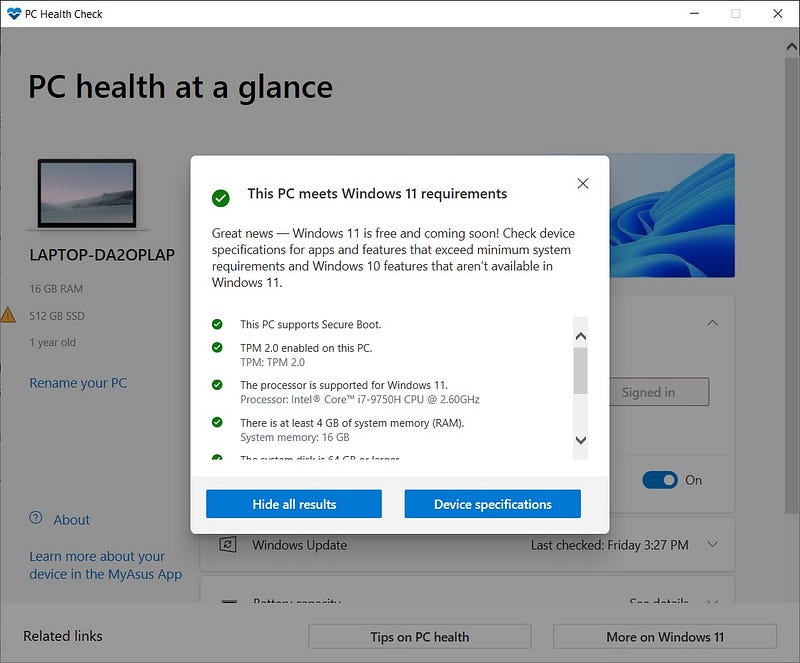
Flyoobe compatibility verification runs before attempting installation to confirm your hardware can actually run Windows 11.
“Enable advanced upgrade mode” checkbox bypasses Microsoft’s compatibility enforcement during installation.
Installation type selection:
- Keep personal files, apps, and Windows settings (safest option)
- Keep personal files only (clean installation with file preservation)
- Nothing (complete fresh installation)
Windows Server installation screen appears during the process — this is normal and expected.
What Actually Gets Installed
Despite using Windows Server installation routines, you receive a fully functional Windows 11 installation.
Activation and Licensing
Automatic activation typically works using your existing Windows 10 digital license.
Product key entry may be required if automatic activation fails, but your Windows 10 key should work.
License validation occurs through Microsoft’s activation servers, which don’t check hardware compatibility.
Genuine Windows status is maintained since you’re using legitimate installation files and licenses.
Feature Availability
Core Windows 11 features work normally, including the new interface, Start menu, and system improvements.
Security features may be limited without TPM 2.0 — Windows Hello biometric authentication won’t work, but basic security remains functional.
Windows Update continues working normally, providing security patches and feature updates.
Microsoft Store and built-in apps function without restrictions.
Performance and Compatibility Results
Hardware Performance on “Unsupported” Systems
7th-generation Intel processors run Windows 11 acceptably for typical home and office use.
1st-generation AMD Ryzen handles Windows 11 reasonably well, though performance isn’t as smooth as newer hardware.
Older systems (pre-2015) may struggle with Windows 11’s background processes and visual effects.
Memory usage is higher than Windows 10, so systems with 8GB+ RAM perform better than 4GB configurations.
Feature Limitations Without TPM 2.0
BitLocker encryption still works through software-based encryption rather than hardware acceleration.
Windows Hello biometric features won’t function without compatible hardware and TPM.
Some enterprise security features may be unavailable, but home users typically don’t use these anyway.
Core functionality remains unaffected — the operating system works normally for everyday tasks.
Risks and Potential Problems
Bypassing Microsoft’s official compatibility checks involves inherent risks that must be considered.
Technical Risks
Installation failure could potentially damage your existing Windows 10 installation.
Hardware incompatibility might cause stability issues or performance problems.
Driver availability for older hardware may be limited in Windows 11.
Update compatibility could theoretically be affected by future Microsoft changes to the upgrade process.
Support and Warranty Implications
Microsoft support will refuse assistance if they discover you’re running Windows 11 on officially unsupported hardware.
Automatic upgrade blocking — Microsoft might prevent future feature updates on bypassed installations.
Rollback options — Windows 11 provides a 10-day rollback window to return to Windows 10 if problems arise.
Legal and License Considerations
License terms aren’t violated since you’re using legitimate Windows licenses on hardware you own.
Warranty implications for your computer hardware are minimal since you’re only changing software.
Microsoft policy could theoretically change to actively block bypassed installations, though this seems unlikely.
Alternatives to Consider
Flyoobe isn’t the only option for dealing with Windows 11 compatibility restrictions.
Official Microsoft Workarounds
Registry modifications can bypass some compatibility checks, though these methods are less reliable and more complex.
Group Policy settings in Professional and Enterprise editions provide some upgrade control options.
Windows 11 IoT or Enterprise LTSC versions have different compatibility requirements but aren’t available to consumer users.
Third-Party Solutions
Linux migration eliminates Microsoft compatibility games entirely while often improving performance on older hardware.
Windows 10 Extended Security Updates provide continued security support until 2026 without requiring upgrades.
Staying with Windows 10 remains viable for many users, especially with third-party security patching services available.
Making the Bypass Decision
Whether to use Flyoobe depends on your specific circumstances and risk tolerance.
Flyoobe makes sense if:
- Your hardware runs Windows 10 smoothly and you want Windows 11 features
- You’re comfortable with technical procedures and troubleshooting
- You don’t rely on Microsoft’s official support channels
- You understand and accept the potential risks involved
Consider alternatives if:
- Your hardware genuinely struggles with Windows 10 performance
- You prefer official support and guaranteed compatibility
- You’re not comfortable with system modification procedures
- You’re satisfied with Windows 10 and don’t need Windows 11 features
The decision often comes down to whether you believe Microsoft’s compatibility requirements reflect genuine technical limitations or artificial market segmentation designed to drive hardware sales.
Windows 11 runs acceptably on much of the hardware that Microsoft calls “incompatible.” The question is whether you’re willing to take responsibility for making that determination yourself rather than accepting Microsoft’s arbitrary restrictions.
Your computer doesn’t become obsolete just because Microsoft wants to sell more licenses and hardware manufacturers want to sell more systems. Sometimes the best response to artificial obsolescence is simply ignoring the people who profit from it.
Comments
Post a Comment