Here’s something that’ll blow your mind: the way fintech companies decide whether to lend you money is getting a serious upgrade. And I’m not talking about minor tweaks to old formulas — I’m talking about reinforcement learning algorithms that literally learn from every lending decision they make.
Best AI Image Upscalers in 2026: Complete Comparison Guide
on
Get link
Facebook
X
Pinterest
Email
Other Apps
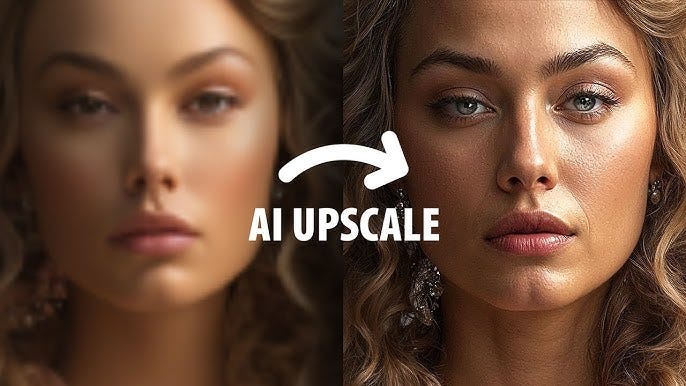
So you’ve got this old photo from 2010 that looks like it was taken with a potato, and you need to blow it up for a presentation. Or maybe you found the perfect image online, but it’s thumbnail-sized and pixelated. We’ve all been there, and honestly? AI upscalers have become absolute lifesavers for situations like these.
I’ve spent way too much time testing these tools — probably more than any reasonable person should — and I’m here to break down which ones actually deliver and which ones are just fancy filters slapped with an “AI” label. Let’s get into it.
Best AI Image Upscalers in 2026
What Makes AI Upscaling Different from Basic Resizing?
Before we dive into the contenders, let’s talk about why AI upscaling isn’t just your grandma’s Photoshop resize tool on steroids.
When you use traditional upscaling (like bicubic interpolation), your software basically guesses what the new pixels should look like by averaging the colors around them. It’s math, but it’s dumb math. You end up with blurry, soft images that scream “I’ve been enlarged!”
AI upscalers are different because they actually understand images. They’ve been trained on millions of high-resolution photos and learned to recognize patterns — what skin texture looks like, how hair should flow, what details typically exist in certain types of images. Instead of just blurring and averaging, they genuinely reconstruct missing details.
Pretty wild, right? It’s like the difference between photocopying a photocopy versus having an artist redraw the image with more detail.
The Top Contenders: My Honest Rankings
Alright, let’s cut to the chase. I’ve tested these tools extensively, and here’s how they stack up:
1. Topaz Gigapixel AI — The Professional’s Choice
Price: $99 one-time purchase Best for: Professional photographers and serious hobbyists
If you’re serious about image upscaling, Topaz Gigapixel AI is pretty much the gold standard. I’ve been using it for over two years now, and it consistently delivers results that make me do a double-take.
What makes it special:
Incredible detail reconstruction — Seriously, it sometimes feels like magic
Batch processing — Upload hundreds of images and let it run overnight
Face refinement — Specifically trained to handle facial features beautifully
Multiple AI models — Choose between standard, low quality, compressed, and more
Works offline — No cloud processing, everything happens on your machine
The software uses multiple neural network models trained on different types of imagery. When you upscale a portrait, it applies different processing than it would for a landscape or architectural photo. This content-aware approach is why it crushes the competition in terms of pure quality.
Downsides? It’s slower than web-based options, and the interface feels a bit dated. Also, that $99 price tag might seem steep if you only need to upscale images occasionally.
2. Magnific AI — The New Kid Making Waves
Price: $39/month (Professional plan) Best for: Creative professionals who need the absolute best quality
Magnific AI burst onto the scene in late 2024, and holy crap, it’s impressive. This is the tool I reach for when I need truly exceptional results and don’t mind paying a premium.
Why it’s gaining traction:
Unmatched detail generation — Creates textures and details that weren’t in the original
Style control — Adjust how creative vs. faithful the upscale should be
HDR enhancement — Can boost dynamic range while upscaling
Prompt-guided upscaling — Describe what you want emphasized (yes, really)
Here’s what blew my mind: Magnific doesn’t just upscale — it can actually reinterpret images based on text prompts. Want to upscale an old photo and add more emphasis to certain textures? You can guide it with natural language. It’s like having a restoration artist who takes direction.
The catch? It’s expensive as hell for regular use, and sometimes it gets a bit too creative. You need to dial back the “creativity” slider if you want accuracy rather than artistic interpretation.
3. Upscayl — The Open-Source Champion
Price: Free (open-source) Best for: Budget-conscious users and Linux enthusiasts
Look, not everyone wants to drop $40/month on image upscaling. Enter Upscayl — completely free, open-source, and surprisingly capable.
What I appreciate about it:
Zero cost — Seriously, it’s free forever
Multiple models included — Real-ESRGAN, RealSR, and more
Cross-platform — Windows, Mac, and Linux support
Batch processing — Handle multiple images at once
No watermarks or limitations — Unlike many “free” tools
The quality isn’t quite Topaz or Magnific level, but for a free tool? It’s shockingly good. I use it for quick upscales where I don’t need absolute perfection. FYI, it’s perfect for upscaling game textures, anime-style images, and digital art.
The interface is a bit bare-bones, and you’ll need a decent GPU to get reasonable processing speeds. But did I mention it’s free? :)
4. Let’s Enhance — The Web-Based Workhorse
Price: Starts at $9/month Best for: Teams and businesses needing consistent results
Let’s Enhance has been around since the early days of AI upscaling, and they’ve refined their approach over the years. It’s not the flashiest, but it’s reliable and gets the job done.
Key features:
Browser-based — No installation needed
API access — Integrate into your workflow
Batch processing with presets — Set it and forget it
Team collaboration features — Share projects and results
Consistent results — Less impressive peaks but fewer disappointing valleys
I find myself using Let’s Enhance for client work where I need predictable, professional results rather than experimental quality. It rarely wows me, but it also rarely disappoints. Sometimes consistency beats occasional brilliance, especially when you’re on a deadline.
The subscription model might turn some people off, and the quality doesn’t quite match Topaz or Magnific. But the convenience factor is real.
5. Adobe Super Resolution — The Convenient Option
Price: Included with Creative Cloud subscription Best for: Adobe users who want quick results
If you’re already paying for Adobe Creative Cloud, you’ve got Super Resolution built right into Camera Raw and Lightroom. It’s not going to blow your mind, but it’s competent and incredibly convenient.
Pros:
Already included — No additional cost if you have CC
Seamless workflow — Integrated into apps you already use
Good for RAW files — Works great with camera RAW images
Fast processing — Results in seconds
Cons:
Limited to 2x upscaling — Can’t do 4x or 6x like competitors
Less impressive detail reconstruction — Adequate but not amazing
Requires Creative Cloud — Not a standalone option
Honestly, I use Adobe Super Resolution for quick touch-ups and when I’m already working in Lightroom. But for serious upscaling projects? I export and use Topaz or Magnific.
What Actually Matters When Choosing an Upscaler?
Ever wondered what you should actually prioritize when picking an AI upscaler? Here’s what I’ve learned matters most in real-world use:
Quality vs Speed Trade-Off
High-quality processing takes time. Topaz might take 30–60 seconds per image, while a web tool might spit out results in 5 seconds. The question is: do you need perfection or good-enough-fast?
For social media posts or quick web graphics, fast is fine. For print work, client deliverables, or archival restoration? Take the time for quality processing.
Input Image Quality Matters More Than You Think
Here’s the hard truth: AI upscalers aren’t magic. They can’t create detail that has zero basis in the original image. Garbage in, garbage out still applies — just with fancier garbage.
The best results come from:
Images with some existing detail (even if small)
Photos without heavy compression artifacts
Images with decent lighting and contrast
Content that matches what the AI was trained on
If your source image is a blurry, JPEG-compressed mess that’s been saved and re-saved 20 times, even the best AI upscaler will struggle.
Content Type Specialization
Not all upscalers handle all content equally well. Some are trained specifically for:
Portraits and faces — Topaz excels here
Anime and illustrations — Upscayl with the right model
Landscapes and nature — Most general-purpose tools work well
Text and graphics — Specialized models in tools like Topaz
IMO, having the right tool for your specific content type matters more than using the “best” overall tool.
Real-World Testing: The Results That Matter
Let me share some actual test results because specs and features only tell you so much. I took the same low-resolution image and ran it through all the major upscalers to see what happened.
Test Image: 500x750px Portrait
Source: Old Facebook profile photo (because we all have regrettable low-res photos from 2012) Goal: Upscale to 2000x3000px for printing
Detail in hair: Good, some artificial-looking strands
Skin texture: Slightly plastic-looking
Edge sharpness: Good but occasional artifacts
Processing time: 20 seconds
Overall grade: B+ (impressive for free!)
Let’s Enhance:
Detail in hair: Decent but not exceptional
Skin texture: Safe and natural
Edge sharpness: Clean but soft
Processing time: 12 seconds
Overall grade: B
Adobe Super Resolution:
Only 2x upscale possible: Limited usefulness
Detail: Adequate but unimpressive
Processing time: 8 seconds
Overall grade: B- (but convenient if you’re already in Adobe)
Test Image: Landscape Photography
The rankings actually shifted when I tested landscape images:
Magnific AI — Incredible texture reconstruction in foliage and clouds
Topaz Gigapixel AI — Close second, more faithful to original
Upscayl — Surprisingly good with nature scenes
Let’s Enhance — Solid, consistent results
Adobe Super Resolution — Limited by 2x cap
See what I mean about content specialization mattering?
The Features That Actually Make a Difference
After extensive testing, here are the features that separate the good from the great:
Batch Processing
If you’re upscaling more than a handful of images, batch processing is non-negotiable. Topaz and Upscayl handle this beautifully. Magnific… not so much (at least not without the expensive tier).
Sitting there uploading images one by one like some kind of caveman? Hard pass.
Multiple AI Models
Tools that offer different AI models for different content types consistently outperform one-size-fits-all solutions. Topaz’s various models (Standard, Low Quality, Compressed, etc.) mean you can choose the right approach for each image.
Preview Options
Being able to compare before-and-after results before processing helps avoid wasting time. Magnific’s split-screen preview is particularly nice, while Upscayl’s preview feature is… well, it exists. :/
Output Format Control
Professional work requires control over output formats, bit depth, and color spaces. This is where desktop applications shine over web tools. Topaz lets you output in multiple formats with full control over compression and color management.
Web tools often give you a JPEG and call it a day, which isn’t always what you need.
The Hidden Costs You Should Know About
Let’s talk about what these tools don’t advertise upfront:
GPU Requirements
Most AI upscalers run on your GPU, not your CPU. If you’re rocking integrated graphics or an older GPU, you’re going to have a bad time. Topaz recommends at least 4GB VRAM for decent performance. My tests with an RTX 3070 were smooth; my old laptop with a GTX 1050? Not so much.
Web-based tools do the processing in the cloud, so your hardware doesn’t matter — but you’re limited by upload speeds and subscription costs instead.
Learning Curves
Some tools are plug-and-play. Others… not so much. Magnific AI’s creativity sliders and prompt system take experimentation to master. You’ll waste time (and credits) figuring out optimal settings.
Topaz has a learning curve too, but at least with the one-time purchase, you’re not burning money while you learn.
Subscription Fatigue
Between photo editing software, cloud storage, stock images, and now AI tools, the subscriptions add up fast. Factor this into your decision. A $99 one-time purchase might look expensive compared to $9/month, but do the math over two years.
My Personal Workflow and Recommendations
After all this testing, here’s what I actually use in practice:
For professional client work: Topaz Gigapixel AI For experimental/creative projects: Magnific AI (monthly sub, cancel between projects) For quick web graphics: Let’s Enhance or Adobe Super Resolution For personal projects/learning: Upscayl For batch processing old photos: Topaz Gigapixel AI
I don’t subscribe to everything simultaneously — that’s financial madness. I maintain Topaz (owned outright) and rotate through monthly subscriptions of others based on current projects.
Common Mistakes to Avoid
Learn from my failures so you don’t have to repeat them:
Over-Upscaling
Just because you can upscale 10x doesn’t mean you should. The sweet spot is usually 2–4x depending on your source quality. Beyond that, you’re asking the AI to invent more information than actually exists, and results get weird.
Ignoring the Source Quality
No AI can magically fix a terrible source image. If your photo is out of focus, upscaling won’t bring it into focus — it’ll just give you a larger blurry image with invented details that might look sharp but aren’t actually correct.
Using the Wrong Model
Trying to upscale anime art with a model trained on photographs? You’re going to get disappointing results. Match your content type to the appropriate AI model.
Not Checking Your Results at 100%
Those impressive preview thumbnails can hide a multitude of artifacts. Always zoom to 100% and check the details before considering the job done. I’ve been burned by results that looked great at 50% zoom but fell apart under scrutiny.
The Future of AI Upscaling
Where is all this headed? Based on current trends and recent developments:
Real-time upscaling is getting closer to reality. NVIDIA’s DLSS technology already does this for video games, and similar tech will eventually come to static image processing.
Video upscaling is the next frontier. Tools like Topaz Video AI exist, but they’re still computationally expensive. As hardware improves, expect this to become more accessible.
Mobile processing is improving fast. Right now, most serious upscaling needs a desktop GPU, but mobile AI chips are catching up quickly.
Integration with other AI tools will become standard. Imagine upscaling, background removal, object replacement, and style transfer all in one seamless workflow.
The Bottom Line: What Should You Actually Buy?
Here’s my straight-up recommendation based on different use cases:
If you’re a professional photographer or designer: Buy Topaz Gigapixel AI. The $99 investment pays for itself quickly, and the quality is consistently excellent.
If you need the absolute best quality occasionally: Subscribe to Magnific AI monthly when you have projects, then cancel. Don’t maintain an ongoing subscription unless you use it constantly.
If you’re on a budget or just starting out: Use Upscayl. It’s free, it’s capable, and you can always upgrade later if you need more.
If you’re already in the Adobe ecosystem: Start with Super Resolution for quick jobs, but invest in Topaz for serious work.
If you run a business with regular upscaling needs: Let’s Enhance’s team plans and API access make it worth considering despite the subscription cost.
The “best” tool really depends on your specific needs, budget, and how often you’re upscaling images. There’s no one-size-fits-all answer, and anyone who tells you otherwise is probably trying to sell you something.
For what it’s worth, I’ve got Topaz permanently installed and use it for 80% of my upscaling work. The other 20%? A mix of everything else depending on what the project demands. That’s the real-world answer nobody wants to admit — sometimes you need multiple tools in your arsenal.
Now go forth and upscale those pixelated disasters into something presentable. Your old photos (and your clients) will thank you. 😊
Comments
Post a Comment